Bebird ear cleaning cameras help users maintain ear hygiene through smartphone connectivity. However, connection problems frequently frustrate Android users attempting to pair devices with the Bebird app. These issues prevent access to real-time camera feeds and smart cleaning features.
Understanding common connection problems and their solutions ensures smooth operation of your Bebird device. This comprehensive guide addresses troubleshooting steps specifically for Android phones experiencing Bebird app connectivity failures.
Understanding Common Bebird Connection Problems
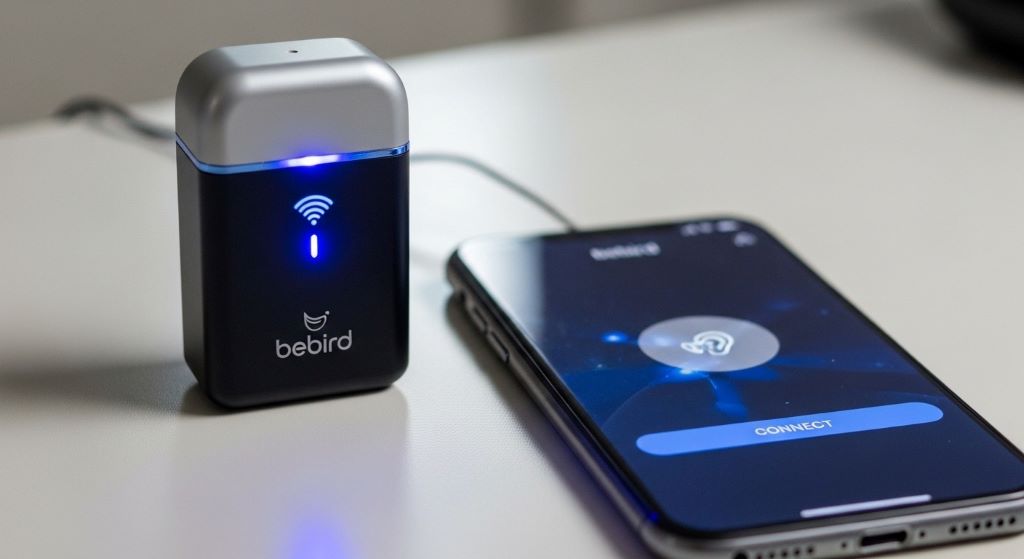
Bebird devices connect to Android phones through WiFi networks rather than traditional Bluetooth pairing. Many users mistakenly attempt Bluetooth connections, leading to immediate frustration. The device broadcasts its own WiFi signal that phones must join.
Connection failures typically manifest as error messages stating “device not found” or “connection timeout.” Additionally, some users experience successful initial connections that drop unexpectedly during use. These interruptions disrupt ear examination sessions and cleaning procedures.
Network interference causes many connectivity issues between Bebird devices and Android phones. Multiple WiFi networks in densely populated areas create signal conflicts. Moreover, certain Android security settings block connections to unfamiliar WiFi networks automatically.
App version incompatibilities frequently contribute to connection failures. Outdated Bebird apps lack compatibility with newer Android operating systems. Therefore, maintaining current app versions becomes essential for reliable device performance.
Verifying Basic Connection Requirements
Check that your Bebird device has sufficient battery charge before attempting connections. Low battery levels prevent stable WiFi signal transmission. Charge the device fully using the provided USB cable for optimal results.
Confirm your Android phone’s WiFi functionality operates correctly. Test WiFi by connecting to your home network or mobile hotspot. Additionally, ensure airplane mode remains disabled, as this blocks all wireless connections.
Verify you’re using the official Bebird app downloaded from Google Play Store. Third-party apps or outdated versions cause compatibility problems. Search “Bebird” in the Play Store and confirm you have the latest release installed.
Position your phone within close range of the Bebird device during pairing attempts. WiFi signals weaken beyond three to five feet distance. However, avoid placing metal objects between the devices, as these interfere with wireless transmission.
Enabling Necessary Android Permissions
Android phones require specific permissions for apps to access WiFi and camera features. Open your phone’s Settings app and navigate to Apps or Application Manager. Locate the Bebird app in your installed applications list.
Tap on the Bebird app and select Permissions. Ensure Location, Camera, and Storage permissions show as allowed. Android systems need location access for WiFi connectivity despite the confusing nomenclature. Therefore, denying location permission prevents WiFi connections entirely.
Some Android versions require additional WiFi permissions under Special App Access settings. Navigate to Settings, then Apps, and select Special Access. Check WiFi Control and ensure Bebird has necessary permissions enabled.
Restart your phone after adjusting permissions to implement changes fully. Permission modifications don’t always activate immediately without device reboots. Additionally, restarting clears temporary system conflicts affecting app performance.
According to Android Central, Android requires location services enabled for WiFi scanning due to privacy regulations preventing network-based location tracking without user consent.
Performing Correct WiFi Connection Steps
Power on your Bebird device and wait for the indicator light to flash. This blinking confirms the device broadcasts its WiFi signal. The light typically flashes blue or green depending on your model.
Open your Android phone’s WiFi settings, not the Bebird app initially. Look for a network named “Bebird” followed by numbers or letters identifying your specific device. Select this network from available WiFi options.
Your phone may warn that this network has no internet connection. Tap “Connect Anyway” or “Yes” to proceed with the connection. Android phones automatically prefer internet-connected networks, requiring manual override for device-specific WiFi.
After successfully connecting to the Bebird WiFi network, open the Bebird app. The app should automatically detect your connected device and display the camera feed. However, if detection fails, tap the connection or pairing button within the app interface.
Resolving WiFi Network Switching Issues
Android phones automatically switch away from networks without internet access. This Smart Network Switch feature disconnects users from Bebird devices unexpectedly. Disable this feature temporarily while using your Bebird camera.
Navigate to WiFi settings and tap the three-dot menu icon. Select Advanced or Advanced WiFi settings depending on your Android version. Locate Smart Network Switch, WiFi+, or similar automatic network selection options.
Toggle these automatic switching features off before connecting to your Bebird device. Remember to re-enable them after completing ear cleaning sessions. Additionally, some phones require disabling mobile data to prevent automatic disconnections.
Samsung devices include a specific Switch to Mobile Data setting under WiFi preferences. Turn this option off to maintain stable Bebird connections. Moreover, other manufacturers may label this feature differently within their customized Android interfaces.
Clearing App Cache and Data
Corrupted app data frequently causes persistent connection problems. Clearing Bebird app cache removes temporary files without deleting saved settings. Navigate to Settings, then Apps, and select the Bebird application.
Tap Storage or Storage & Cache depending on your Android version. Select Clear Cache first and attempt reconnecting your device. This step resolves many minor glitches without affecting app configuration.
If clearing cache doesn’t resolve issues, select Clear Data or Clear Storage. This action resets the app to factory condition, requiring fresh setup. Therefore, use this option only after cache clearing fails to fix problems.
Uninstall and reinstall the Bebird app for severe persistent issues. This ensures you have the latest version with all required files properly installed. However, save any app settings or preferences before uninstalling if possible.
Updating Android Operating System
Outdated Android versions sometimes conflict with modern app requirements. Check for available system updates by opening Settings and selecting System or About Phone. Tap System Updates or Software Update to check for new releases.
Download and install any available Android updates before troubleshooting further. Updates include WiFi stability improvements and security patches affecting network connections. Additionally, manufacturers release updates specifically addressing known connectivity issues.
Restart your phone after completing system updates to implement all changes. Some updates require multiple restarts for full activation. Moreover, allow 10-15 minutes after updating before attempting Bebird connections.
Extremely old Android versions may lack compatibility with current Bebird app requirements. Phones running Android 6.0 or earlier may experience irreparable connection issues. Therefore, consider device upgrades if running outdated operating systems.
Disabling VPN and Firewall Applications
Virtual Private Networks and security apps block connections to unfamiliar WiFi networks. Temporarily disable VPN applications before connecting to your Bebird device. These services route all internet traffic through encrypted servers, preventing local device connections.
Third-party firewall and antivirus apps sometimes categorize Bebird WiFi as security threats. Check your security software settings and add Bebird to trusted networks or applications. Additionally, some apps require complete temporary disabling rather than exception additions.
Android’s built-in Private DNS feature occasionally interferes with direct device connections. Navigate to Settings, then Network & Internet, and select Private DNS. Change the setting to Off temporarily while using your Bebird camera.
According to CNET, while Private DNS enhances security, it can prevent local network device connections that don’t require internet access.
Resetting Network Settings
Network setting resets clear all WiFi, mobile data, and Bluetooth configurations. This drastic step resolves deep-seated connectivity problems when other methods fail. Navigate to Settings, then System, and select Reset Options.
Tap Reset WiFi, Mobile & Bluetooth or Reset Network Settings depending on your Android version. Confirm the action when prompted, as this cannot be undone. However, you’ll need to rejoin all previously saved WiFi networks afterward.
After resetting network settings, restart your phone completely. Allow the device to fully reboot before attempting new Bebird connections. Additionally, ensure you have WiFi passwords available for reconnecting to home networks.
Attempt Bebird pairing following the correct WiFi connection steps after network reset. This fresh start eliminates corrupted network configurations causing persistent problems. Moreover, many users report successful connections after this comprehensive reset.
Addressing Device-Specific Compatibility Issues
Certain Android phone models experience unique compatibility challenges with Bebird devices. Samsung phones with Knox security sometimes block connections to unfamiliar WiFi networks. Check Knox settings and temporarily disable enhanced security features.
Huawei and Honor devices running EMUI require specific WiFi settings adjustments. Enable “WiFi Direct” in advanced WiFi settings for improved device connectivity. Additionally, these phones may need Developer Options enabled for proper app functionality.
Xiaomi phones with MIUI often include aggressive battery optimization blocking background app processes. Navigate to Settings, then Apps, and select Bebird. Disable battery optimization specifically for the Bebird app to maintain stable connections.
Google Pixel phones generally have fewer compatibility issues but occasionally require Location Services set to High Accuracy mode. Check Location settings and select High Accuracy for optimal Bebird device detection.
Factory Resetting the Bebird Device
Sometimes the Bebird device itself requires resetting rather than the Android phone. Locate the small reset button on your Bebird camera, typically found near the charging port. Use a paperclip or pin to press this recessed button.
Hold the reset button for approximately 10 seconds until indicator lights flash in specific patterns. Release the button and wait for the device to complete its restart cycle. This process returns the Bebird to factory default settings.
After resetting the Bebird device, allow it to fully power up before attempting connections. The indicator light should display its normal standby pattern. Additionally, ensure the device has adequate charge before and after resetting.
Attempt pairing following the standard WiFi connection procedure after device reset. Many persistent connection issues stem from corrupted device firmware rather than phone problems. Therefore, this step often resolves otherwise inexplicable failures.
Contacting Bebird Support for Hardware Issues
Persistent connection failures despite troubleshooting may indicate hardware defects. Bebird devices occasionally ship with faulty WiFi modules preventing reliable connectivity. Contact Bebird customer support through their official website or app.
Provide detailed information about troubleshooting steps already attempted when contacting support. Include your Android phone model, operating system version, and specific error messages received. Additionally, note your Bebird device model and purchase date.
Request warranty replacement for devices consistently failing to connect despite following all troubleshooting procedures. Manufacturing defects qualify for warranty coverage within specified periods. However, gather purchase documentation before initiating warranty claims.
Support teams may provide device-specific firmware updates addressing known connectivity issues. Follow provided instructions carefully when applying firmware updates to avoid damaging devices. Moreover, some updates require specific procedures differing from standard app updates.
Conclusion
Fixing Bebird app connection issues on Android phones requires systematic troubleshooting addressing both software and hardware factors. Most problems stem from incorrect WiFi connection procedures, restrictive Android permissions, or automatic network switching features. Therefore, understanding proper pairing methods and adjusting phone settings resolves the majority of connectivity failures. Additionally, maintaining updated apps and operating systems prevents compatibility conflicts. When standard troubleshooting fails, network resets or device factory resets typically restore functionality. Persistent issues after comprehensive troubleshooting likely indicate hardware defects requiring manufacturer support. Following these structured solutions ensures reliable Bebird device performance for safe and effective ear care.
Frequently Asked Questions
Why won’t my Bebird device show up in available WiFi networks?
Ensure the Bebird device is powered on with sufficient battery charge and the indicator light is flashing. The device must be within close range of your phone, typically three to five feet. Additionally, restart both the Bebird device and your Android phone before scanning for networks again.
Does Bebird connect through Bluetooth or WiFi?
Bebird devices connect exclusively through WiFi, not Bluetooth. The device creates its own WiFi network that your Android phone joins. This common misconception causes many initial connection attempts to fail when users search Bluetooth settings instead of WiFi.
Why does my phone keep disconnecting from the Bebird device?
Android phones automatically switch away from WiFi networks without internet access. Disable Smart Network Switch, WiFi+, or similar automatic network features in your WiFi advanced settings. Additionally, turn off mobile data while using the Bebird device to prevent automatic disconnections.
What Android permissions does the Bebird app need?
The Bebird app requires Location, Camera, and Storage permissions to function properly. Android systems need location access for WiFi connectivity despite seeming unrelated. Navigate to app permissions in Settings and ensure all necessary permissions are enabled.
Can I use Bebird with very old Android phones?
Bebird apps require relatively recent Android versions, typically Android 6.0 or newer. Extremely outdated phones may lack compatibility with current app requirements and WiFi protocols. Therefore, phones running older operating systems may experience irreparable connection issues requiring device upgrades.
Related Topics:
BEST APPS LIKE OMEGLE TO ENJOY CHAT